How to login in Tp Link Router 2025
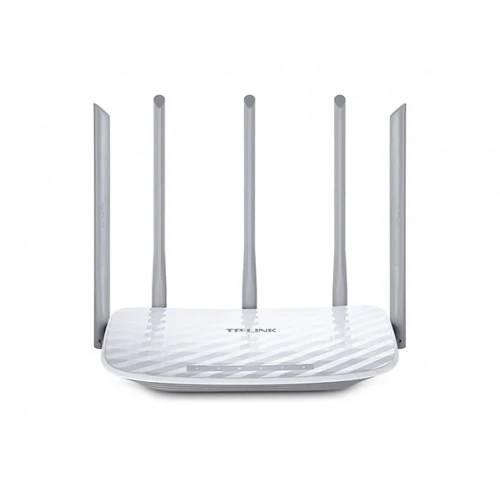
Tp Link Router 2025 | In today’s digitally connected world, managing your home or office network efficiently is paramount. TP-Link routers have long been a popular choice for many due to their reliability and user-friendly interfaces. Whether you’re setting up a new TP-Link router or need to adjust settings on an existing one, accessing the router’s admin panel is the first crucial step. This guide will walk you through the process of logging into your Tp Link Router 2025, ensuring you have full control over your network settings.
Why Access Your TP-Link Router’s Admin Panel?
The admin panel of your Tp Link Router 2025 serves as the command center for your network. From here, you can:
- Configure Network Settings: Set up your Wi-Fi name (SSID), password, and security protocols.
- Monitor Connected Devices: View and manage devices connected to your network.
- Update Firmware: Keep your router’s software up-to-date for optimal performance and security.
- Set Up Parental Controls: Manage and restrict internet access for specific devices or users.
- Establish Guest Networks: Create separate networks for guests to ensure your main network remains secure.
Prerequisites Before Logging In
Before you proceed to log into your TP-Link router, ensure the following:
- Physical Connection: Connect your computer or mobile device to the TP-Link router. This can be done via a wired Ethernet connection or wirelessly over Wi-Fi.
- Obtain Default Login Credentials: For new routers or after a factory reset, you’ll need the default username and password. Typically, both are set to “admin” (all lowercase). However, this can vary based on the router model. Check the label on the underside of your router or refer to the user manual for accurate information.
Step-by-Step Guide to Logging In
Follow these steps to access your Tp Link Router 2025 admin panel:
1. Determine the Router’s IP Address
The default IP address for most TP-Link routers is 192.168.1.1 or 192.168.0.1. If these don’t work, you can find the correct IP address by:
- On Windows:
- Press
Win + R, typecmd, and press Enter to open the Command Prompt. - Type
ipconfigand press Enter. - Look for the “Default Gateway” entry; the IP address listed there is your router’s IP.
- Press
- On macOS:
- Open
System Preferences>Network. - Select your active connection and click
Advanced. - Navigate to the
TCP/IPtab, where you’ll find the router’s IP address listed next to “Router”.
- Open
2. Access the Login Page
- Open your preferred web browser (e.g., Chrome, Firefox, Safari).
- In the address bar, type the router’s IP address (e.g.,
http://192.168.1.1) and press Enter.
3. Enter Login Credentials
- A login prompt will appear. Enter the default username and password:
- Username:
adminPassword:admin
- Username:
4. Navigate the Admin Panel
Upon successful login, you’ll be directed to the router’s admin interface. Here, you can Tp Link Router 2025:
- Change Wi-Fi Settings: Modify your SSID, password, and encryption type.
- Update Firmware: Ensure your router is running the latest software for security and performance enhancements.
- Set Up Parental Controls: Manage internet access for specific devices or users.
- Configure Advanced Settings: Adjust settings like DHCP, NAT, and port forwarding as needed.
Troubleshooting Common Issues
While accessing your TP-Link router’s admin panel is generally straightforward, you might encounter some challenges. Here are common issues and their solutions:
1. Forgotten Login Credentials
If you’ve changed the default username or password and can’t remember them:
- Reset the Router: Locate the reset button (usually a small pinhole) on the back of the router. Using a pointed object, press and hold the reset button for about 10 seconds until the router restarts. This will revert all settings, including login credentials, to factory defaults.
2. Unable to Access the Login Page
If typing the router’s IP address doesn’t bring up the login page Tp Link Router 2025:
- Check Connections: Ensure your device is properly connected to the router. For wired connections, verify that the Ethernet cable is securely plugged in. For wireless connections, confirm you’re connected to the correct Wi-Fi network.
- Use a Different Browser or Device: Sometimes, browser issues can prevent access. Try using an alternative browser or device.
- Disable Proxy Settings: Ensure your browser isn’t configured to use a proxy server, as this can interfere with accessing the router’s interface.
3. IP Address Conflicts
If multiple devices on your network have the same IP address:
- Restart Devices: Reboot your router and connected devices to allow them to obtain new IP addresses.
- Assign Static IPs: For devices that require a constant IP address, configure them with static IPs outside the router’s DHCP range.
Enhancing Your Network with Best Computer Hub Ltd.
For residents of Bangladesh looking to upgrade or purchase new Tp Link Router 2025, Best Computer Hub Ltd.